ROS 2 networking with Workshop
The Workshop container connects to the workshopbr0 managed bridge,
which provides NAT-based outbound connectivity.
This affects ROS 2 discovery and data exchange differently
depending on where the other ROS 2 nodes run.
This guide covers three cases:
This guide covers Fast DDS through rmw_fastrtps_cpp,
the default RMW implementation in the ROS 2 SDK,
and rmw_zenoh_cpp, its most common RMW implementation alternative.
Important
The ROS 2 daemon keeps the RMW implementation and networking configuration with which it was started.
Run ros2 daemon stop on every affected machine and in
every affected Workshop before changing RMW_IMPLEMENTATION,
ROS_DOMAIN_ID, ROS_DISCOVERY_SERVER, ZENOH_CONFIG_OVERRIDE, or another
discovery setting.
Otherwise,
commands such as ros2 node list and ros2 topic list may return a
stale or empty graph even when nodes can exchange data.
Workshop to host
Nodes in a Workshop can communicate with ROS 2 nodes on the host without additional configuration.
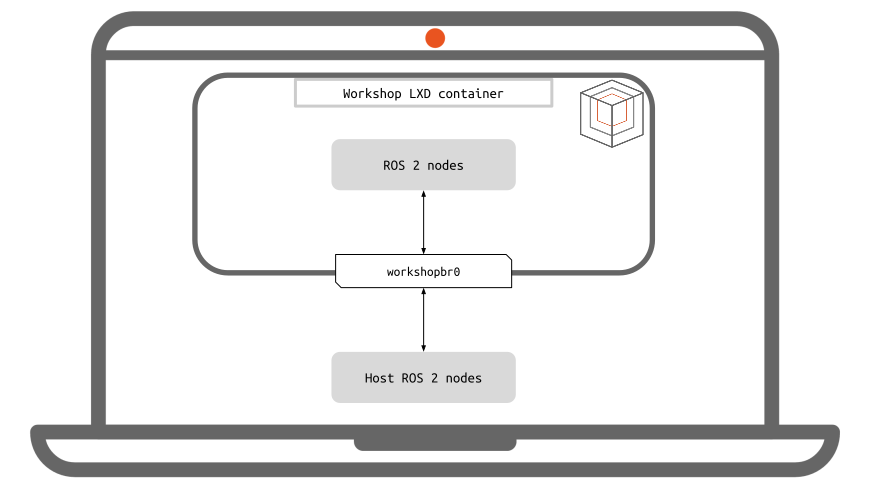
Use Fast DDS and the same ROS domain on both sides:
# Run on both the host and in the Workshop.
ros2 daemon stop
Start a publisher on the host:
ros2 topic pub /workshop_test std_msgs/msg/Int32 '{data: 123}'
Subscribe in the Workshop:
ros2 topic echo /workshop_test std_msgs/msg/Int32
Swap publisher and subscriber to verify both directions.
Install and select rmw_zenoh_cpp on the host and in the Workshop.
Enable peer discovery because the default ROS Zenoh configuration
disables multicast scouting:
# Run on both the host and in the Workshop.
ros2 daemon stop
export RMW_IMPLEMENTATION=rmw_zenoh_cpp
export ZENOH_ROUTER_CHECK_ATTEMPTS=-1
export ZENOH_CONFIG_OVERRIDE='listen/endpoints=["tcp/0.0.0.0:0"];scouting/multicast/enabled=true'
Use the same configuration on both sides, then test:
# Host
ros2 topic pub /workshop_test std_msgs/msg/Int32 '{data: 123}'

# Workshop
ros2 topic echo /workshop_test std_msgs/msg/Int32
Swap publisher and subscriber to verify both directions.
Workshop to Workshop
Workshops on the same host use the same Workshop bridge and can address each other by hostname.
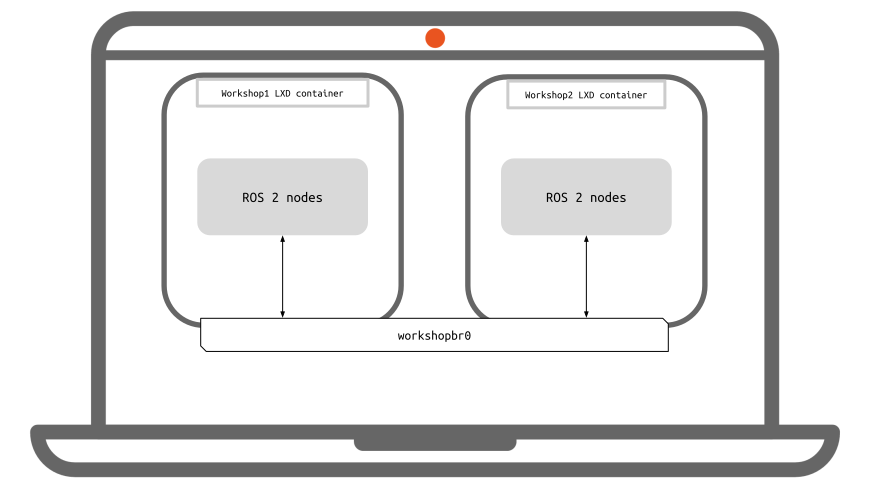
Use Fast DDS and the same ROS domain in both Workshops:
# Run on both workshops.
ros2 daemon stop
Fast DDS multicast discovery and ROS 2 communication work without an additional route. Verify with an explicit type:
# Workshop 1
ros2 topic pub /workshop_test std_msgs/msg/Int32 '{data: 123}'

# Workshop 2
ros2 topic echo /workshop_test std_msgs/msg/Int32
Swap publisher and subscriber to verify both directions.
Configure both Workshops as Zenoh peers with multicast scouting enabled:
# Run on both Workshops.
ros2 daemon stop
export RMW_IMPLEMENTATION=rmw_zenoh_cpp
export ZENOH_ROUTER_CHECK_ATTEMPTS=-1
export ZENOH_CONFIG_OVERRIDE='listen/endpoints=["tcp/0.0.0.0:0"];scouting/multicast/enabled=true'
Then test:
# Workshop 1
ros2 topic pub /workshop_test std_msgs/msg/Int32 '{data: 123}'

# Workshop 2
ros2 topic echo /workshop_test std_msgs/msg/Int32
Swap publisher and subscriber to verify both directions.
Workshop to robot
The robot is on the same LAN as the Workshop host,
but the Workshop itself is behind the workshopbr0 bridge.
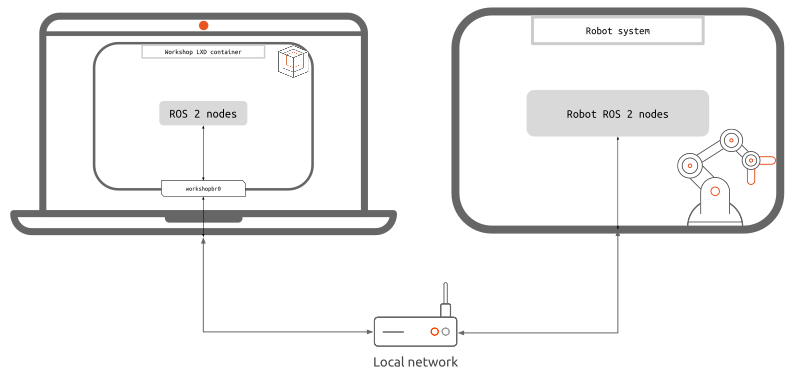
Outbound Workshop connections work, while the robot cannot initiate a connection to the Workshop’s private address without an explicit route or a data relay.
Note
Using Zenoh client mode with rmw_zenoh_cpp is recommended.
It is the simplest configuration.
Use DDS Router when the robot and Workshop nodes must remain on Fast DDS.
Fast DDS Discovery Server
helps with discovery only.
It does not transport user data and won’t help establish a connection to workshopbr0.
Here we need an eProsima DDS Router instance on both the robot and the Workshop to relay ROS 2 traffic in both directions.
Install the router on the robot and in the Workshop:
sudo snap install vulcanexus-router --channel=jazzy/edge
On the robot, create router.yaml:
version: v4.0
specs:
  discovery-trigger: any
allowlist:
  - name: "*"
    type: "*"
participants:
  - name: robot_local
    kind: local
    domain: 0 # matches the ROS_DOMAIN_ID
    transport: udp
  - name: robot_wan
    kind: wan
    listening-addresses:
      - ip: 0.0.0.0
        port: 11666
        transport: tcp
Then start the router:
vulcanexus-router -c router.yaml
In the Workshop, create /home/workshop/router.yaml, replacing ROBOT_IP with the
robot’s LAN IP address or resolvable hostname:
version: v4.0
specs:
  discovery-trigger: any
allowlist:
  - name: "*"
    type: "*"
participants:
  - name: workshop_local
    kind: local
    domain: 0 # matches the ROS_DOMAIN_ID
    transport: udp
  - name: to_robot
    kind: wan
    connection-addresses:
      - ip: ROBOT_IP # make sure to replace the value here
        port: 11666
        transport: tcp
Start the Workshop router:
vulcanexus-router -c /home/workshop/router.yaml
Start both routers before starting the ROS 2 nodes. Test both directions:
# Workshop publisher
ros2 topic pub /robot_test std_msgs/msg/Int32 '{data: 123}'

# Robot subscriber
ros2 topic echo /robot_test std_msgs/msg/Int32
Then swap publisher and subscriber.
Note
discovery-trigger: any is important. The default trigger is reader, which
does not relay a publisher-only topic until a subscriber is discovered on the
same side.
If it doesn’t work, verify that the robot router is reachable from the Workshop:
# from the Workshop
nc -zv ROBOT_IP 11666
Warning
This strategy requires the robot to know the Workshop host address and Workshop subnet. It also requires IP forwarding and forwarding-policy changes on the host. Reconfigure the robot whenever a different host or Workshop subnet is used.
First determine:
HOST_LAN_IP: the Workshop host address reachable from the robot.HOST_LAN_INTERFACE: the host network interface reachable from the robot.WORKSHOP_IP: the Workshop’s address onworkshopbr0.ROBOT_IP: the robot’s LAN address.
On the Workshop host, enable IPv4 forwarding:
sudo sysctl -w net.ipv4.ip_forward=1
In case you have Docker installed, enable incoming traffic from the host network interface to the Workshop bridge:
sudo iptables -A FORWARD -i HOST_LAN_INTERFACE -o workshopbr0 -j ACCEPT
On the robot, route the Workshop subnet through the Workshop host:
sudo ip route add WORKSHOP_IP via HOST_LAN_IP
ping WORKSHOP_IP
From the Workshop, verify reachability to the robot:
ping ROBOT_IP
IP routing does not forward multicast discovery by default. Configure explicit peers using the Fast DDS mechanism supported by your ROS 2 release:
# In the Workshop
ros2 daemon stop
export ROS_STATIC_PEERS='ROBOT_IP'

# On the robot
ros2 daemon stop
export ROS_STATIC_PEERS='WORKSHOP_IP'
Note that ROS_STATIC_PEERS was introduced in Iron,
and is not compatible with prior ROS 2 version
Test both directions:
# Workshop publisher
ros2 topic pub /robot_test std_msgs/msg/Int32 '{data: 123}'

# Robot subscriber
ros2 topic echo /robot_test std_msgs/msg/Int32
This approach uses the Zenoh router as a data relay. The Workshop opens one outbound TCP session to the robot, and traffic flows in both directions over that session. No route, Workshop tunnel, or Workshop-side router is required.
Install rmw_zenoh_cpp for the relevant ROS 2 distribution on both sides.
Start the Zenoh router on the robot:
ros2 daemon stop
export RMW_IMPLEMENTATION=rmw_zenoh_cpp
ros2 run rmw_zenoh_cpp rmw_zenohd
All the robot’s ROS 2 nodes must be running with the RMW_IMPLEMENTATION=rmw_zenoh_cpp.
In the Workshop, replace ROBOT_IP, then configure client mode:
ros2 daemon stop
export RMW_IMPLEMENTATION=rmw_zenoh_cpp
export ZENOH_CONFIG_OVERRIDE='mode="client";connect/endpoints=["tcp/ROBOT_IP:7447"]'
Test both directions:
# Workshop publisher
ros2 topic pub /robot_test std_msgs/msg/Int32 '{data: 123}'

# Robot subscriber
ros2 topic echo /robot_test std_msgs/msg/Int32
Then swap publisher and subscriber.
All participating nodes must use rmw_zenoh_cpp. A Fast DDS node cannot
communicate through this rmw_zenoh router setup.
In case it doesn’t work, make sure the router is reachable from the other peer, example:
# from the Workshop
nc -zv ROBOT_IP 7447
Warning
This strategy requires the robot to know the Workshop host address and Workshop subnet. Prefer Zenoh client mode without routes unless direct peer connectivity is specifically required.
First determine:
HOST_LAN_IP: the Workshop host address reachable from the robot.WORKSHOP_IP: the Workshop’s address onworkshopbr0.ROBOT_IP: the robot’s LAN address.
On the Workshop host, enable IPv4 forwarding:
sudo sysctl -w net.ipv4.ip_forward=1
In case you have Docker installed, enable incoming traffic from the host network interface to the Workshop bridge:
sudo iptables -A FORWARD -i HOST_LAN_INTERFACE -o workshopbr0 -j ACCEPT
On the robot, route the Workshop subnet through the Workshop host:
sudo ip route add WORKSHOP_IP via HOST_LAN_IP
ping WORKSHOP_IP
From the Workshop, verify reachability to the robot:
ping ROBOT_IP
Use an explicit, fixed Zenoh peer endpoint because IP routing does not forward multicast scouting by default. In the Workshop:
ros2 daemon stop
export RMW_IMPLEMENTATION=rmw_zenoh_cpp
export ZENOH_CONFIG_OVERRIDE='mode="peer";listen/endpoints=["tcp/0.0.0.0:7448"];scouting/multicast/enabled=false'
On the robot, connect to the Workshop peer:
ros2 daemon stop
export RMW_IMPLEMENTATION=rmw_zenoh_cpp
export ZENOH_CONFIG_OVERRIDE='mode="peer";connect/endpoints=["tcp/WORKSHOP_IP:7448"];scouting/multicast/enabled=false'
Test both directions:
# Workshop publisher
ros2 topic pub /robot_test std_msgs/msg/Int32 '{data: 123}'

# Robot subscriber
ros2 topic echo /robot_test std_msgs/msg/Int32
Troubleshooting
ROS 2 CLI returns an empty or stale graph
Stop the ROS 2 daemon before every middleware or discovery configuration change. If a CLI command restarted it while changing settings, stop it again before inspecting the graph:
ros2 daemon stop
ros2 topic list --no-daemon
ros2 node list --no-daemon
The daemon inherits RMW_IMPLEMENTATION, ROS_DOMAIN_ID, and middleware
configuration from the environment in which it starts.
Fast DDS and Zenoh settings are mixed
Stop the daemon, then clear middleware-specific settings before changing approaches:
ros2 daemon stop
unset RMW_IMPLEMENTATION ROS_DOMAIN_ID
unset ROS_DISCOVERY_SERVER FASTDDS_DEFAULT_PROFILES_FILE
unset FASTRTPS_DEFAULT_PROFILES_FILE FASTDDS_BUILTIN_TRANSPORTS
unset ZENOH_CONFIG_OVERRIDE ZENOH_SESSION_CONFIG_URI
Set only the variables required by the selected tab before launching nodes or using ROS 2 CLI commands.